Features
Everything you need in a modern file manager
Core File Management
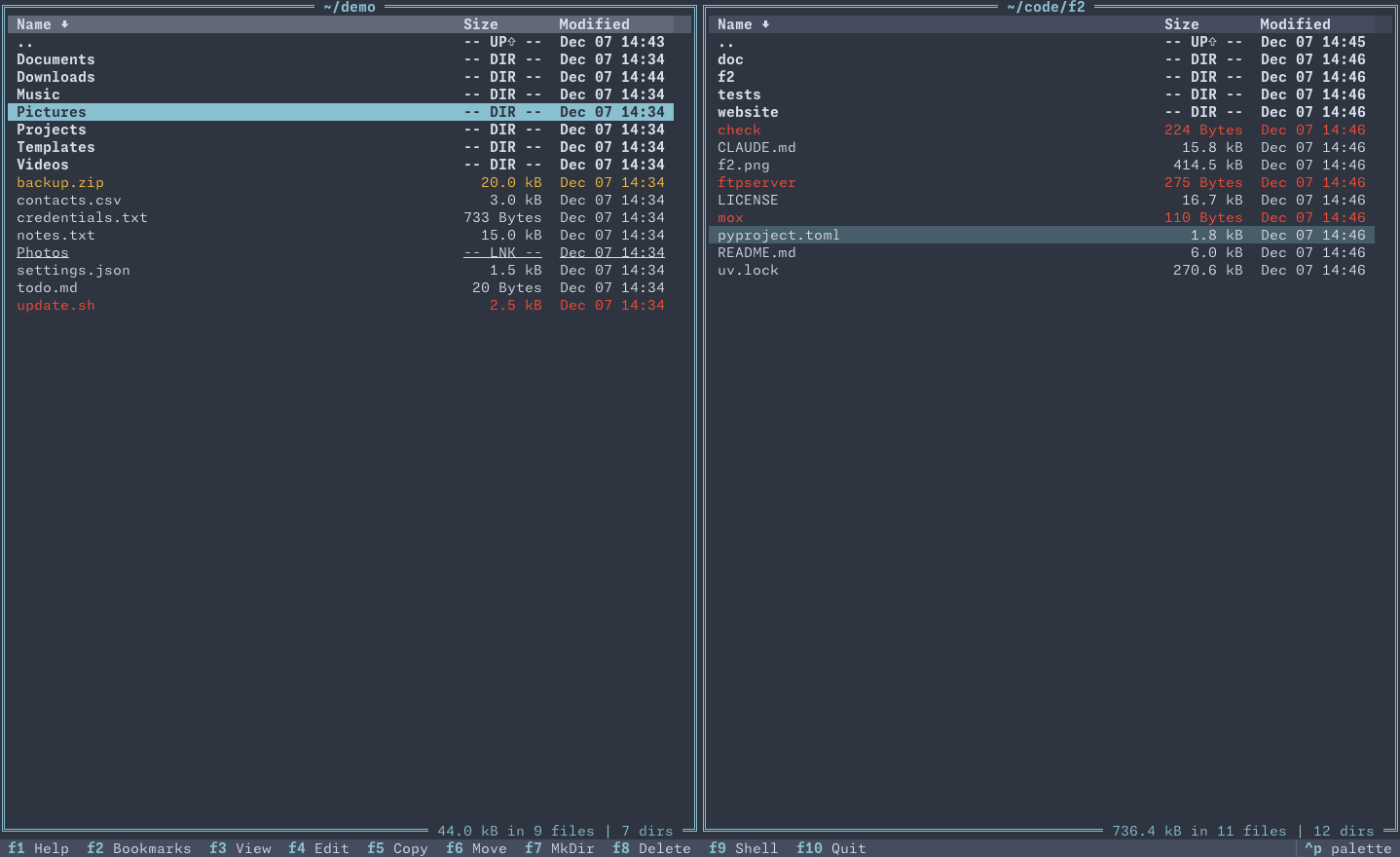
Orthodox Two-Panel Interface
Experience the power of a traditional two-panel file manager optimized for keyboard navigation. View and compare two directories side-by-side, making file operations intuitive and efficient.
- Side-by-side directory comparison
- Switch focus with Tab
- Navigate with Vi-like keys (j/k) or arrow keys
- Jump to top/bottom with g/G
Multiple File Selection
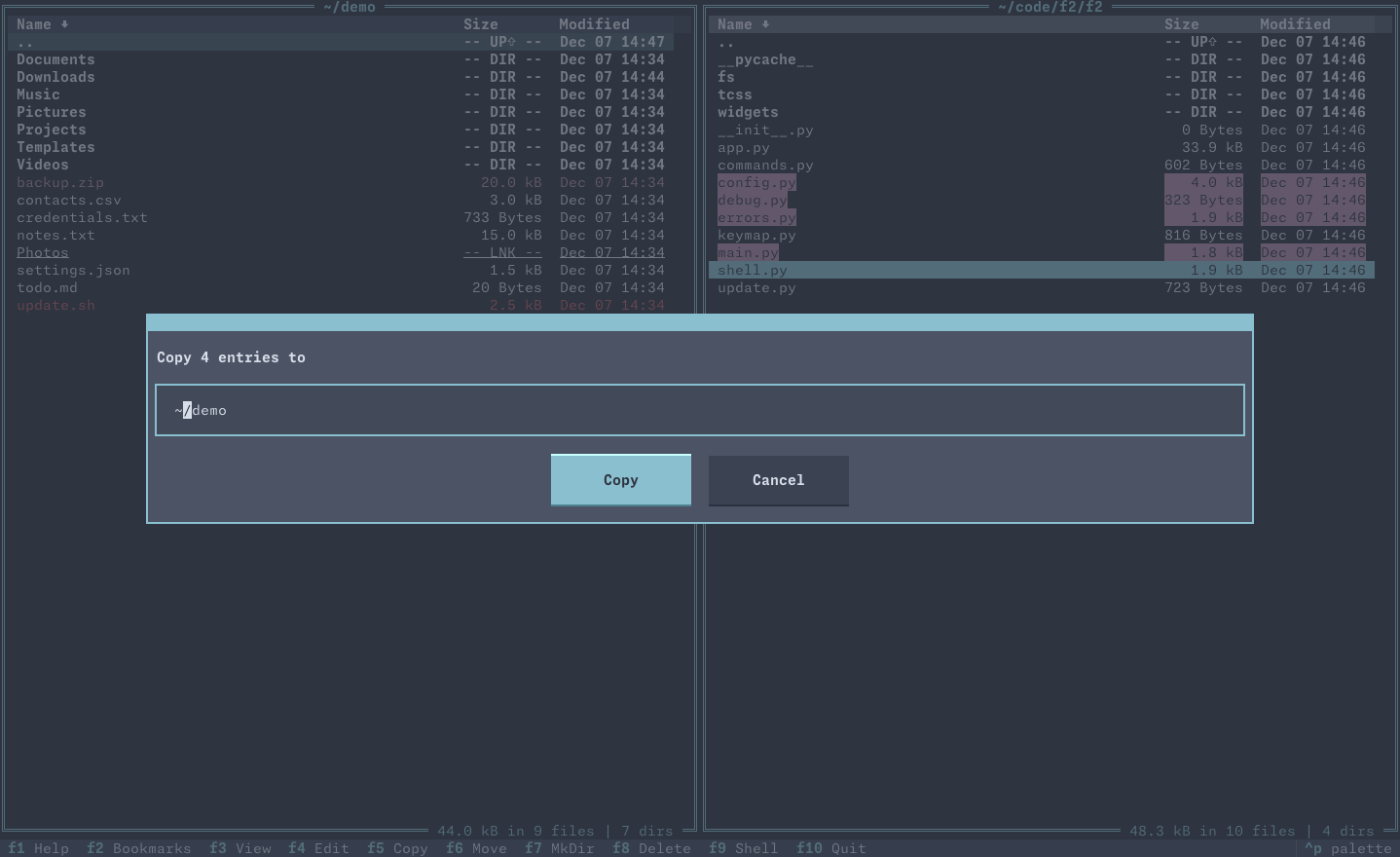
Select and operate on multiple files and directories simultaneously with powerful selection tools.
- Space - Toggle selection for current entry
- Shift + j/k - Select while moving
- + - Select all displayed entries
- - - Clear selection
- * - Invert selection
File Operations
Comprehensive file and directory operations with cross-filesystem support:
- Copy - Copy files/directories between any filesystems
- Move - Move or rename files and directories
- Delete - Move to trash (safe, in local file systems) or permanent deletion
- Create - New directories and files
- Edit - Open in your configured editor
- View - View with default viewer
Works across all filesystem types: copy from S3 to local, FTP to archive, and more!
Smart Navigation
F2 Commander offers flexible keybinding options and powerful navigation features:
Two Keybinding Modes:
- Vi-like Mode (default) - Mnemonic-based keys perfect for modern laptop keyboards:
- c - Copy
- m - Move
- D - Delete
- Function Key Mode - Traditional orthodox file manager bindings:
- F5 - Copy
- F6 - Move
- F8 - Delete
Additional Navigation:
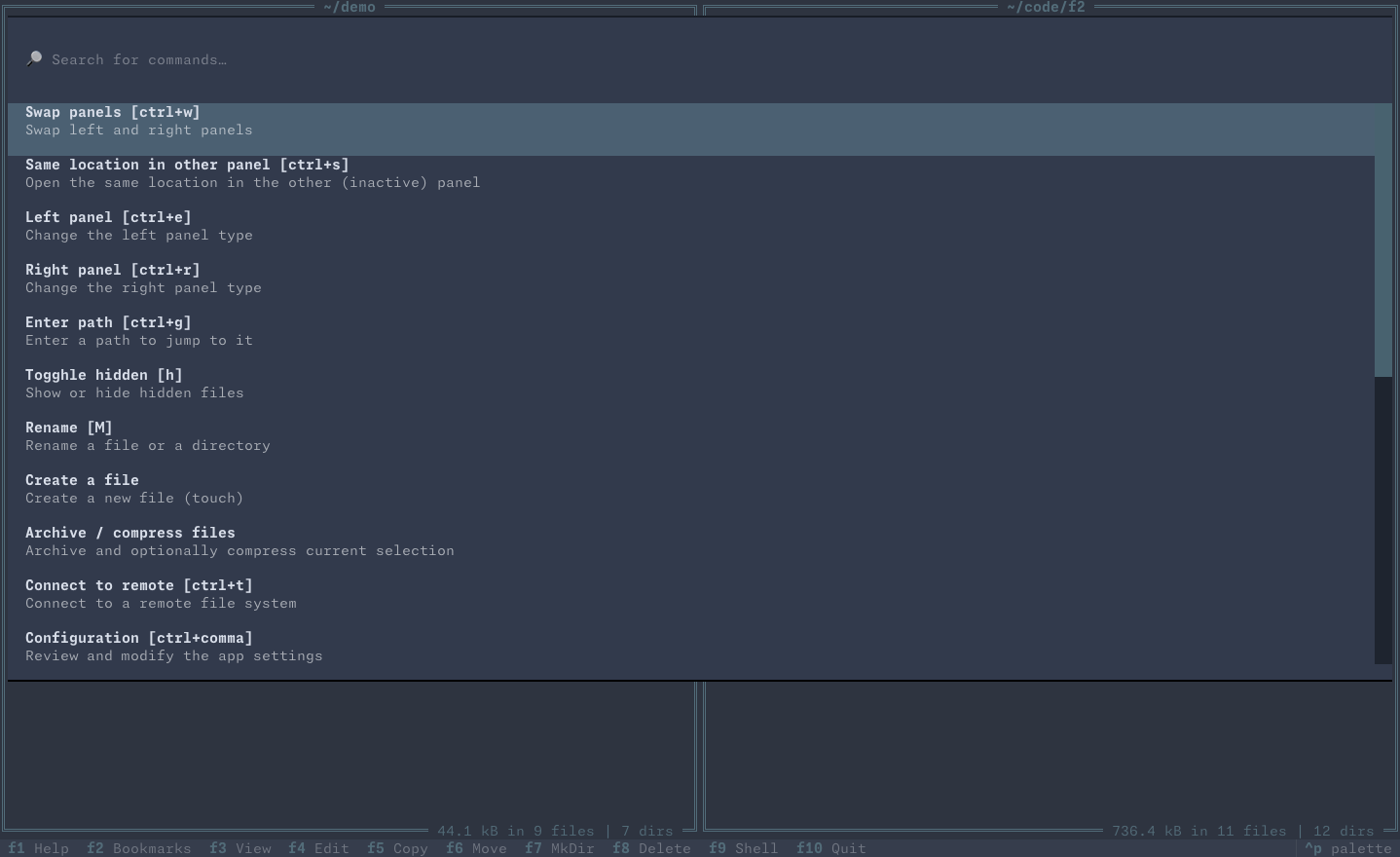
- Command Palette (Ctrl+P) - Access all commands
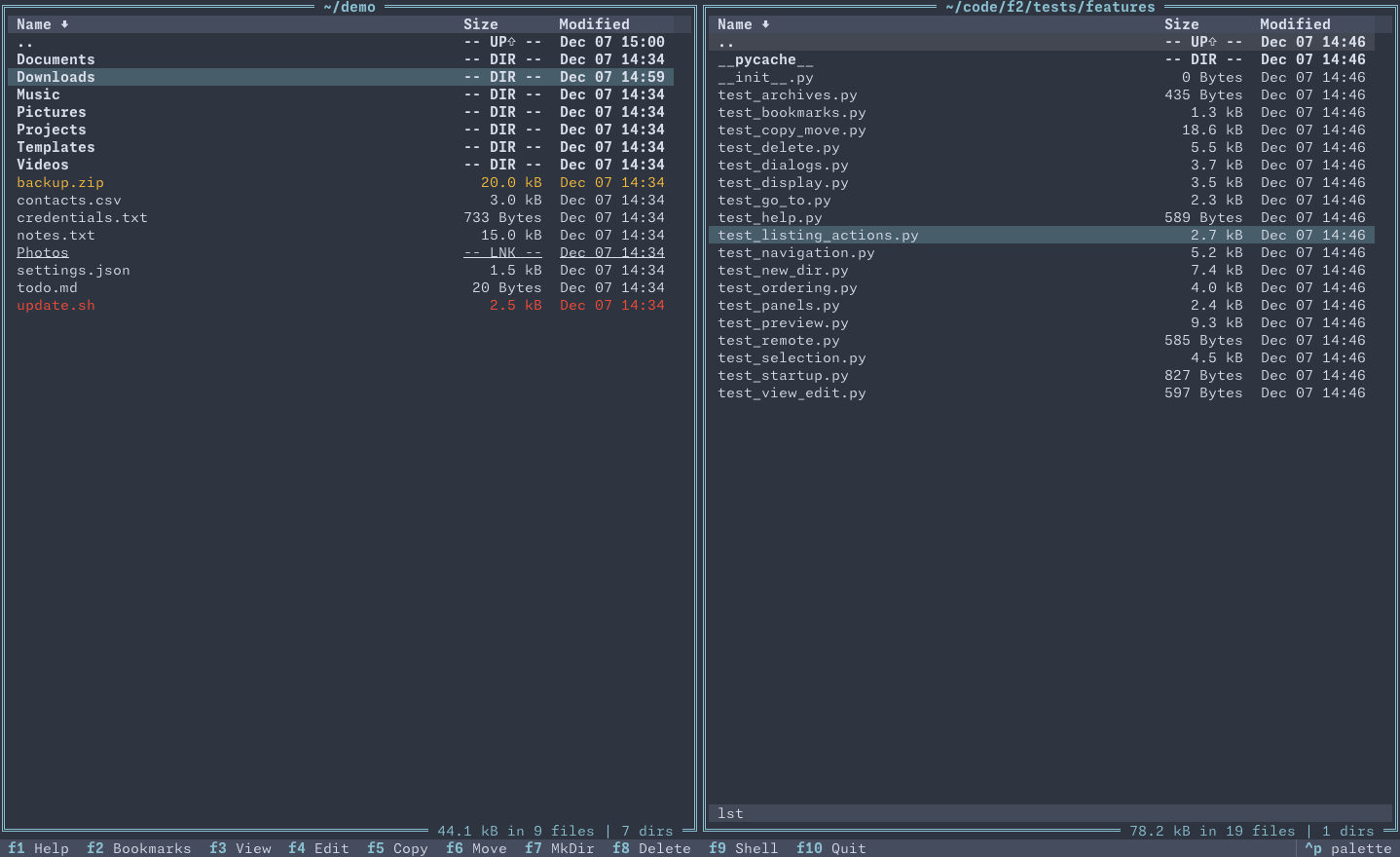
- Incremental Search (/) - Fuzzy find files
- Go to Path (Ctrl+G) - Jump to any location
- Bookmarks (b or F2) - Quick access to favorites
Display & Preview
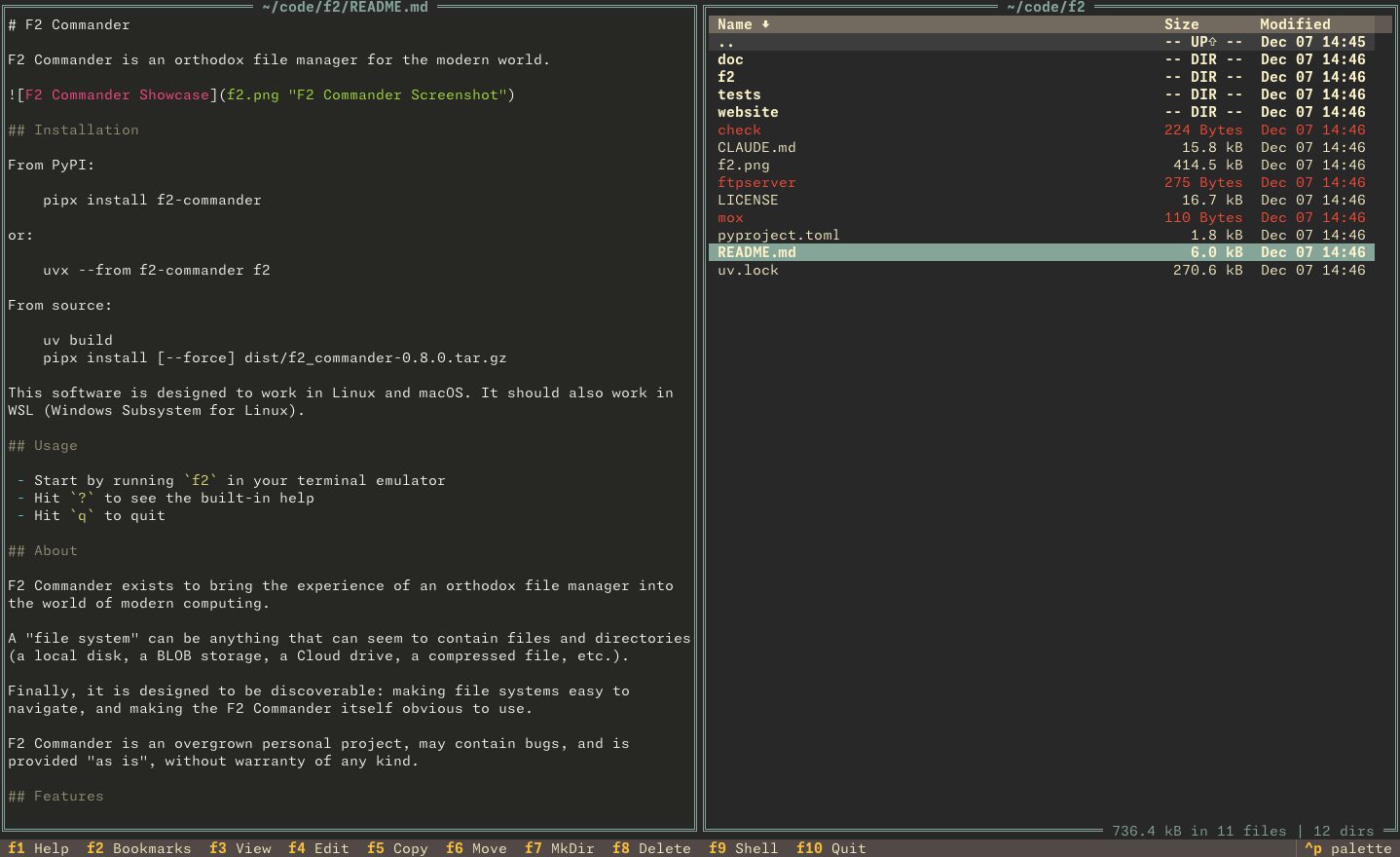
File Preview Panel
Switch any panel to Preview mode to see file contents without opening them:
- Text Files - With syntax highlighting for 100+ languages
- Images - In terminals with TGP or Sixel support
- PDF Files - Rendered preview of PDF documents
- Directories - Tree view of directory structure
Enable preview with Ctrl+E (left panel) or Ctrl+R (right panel).
Display Control
Customize how files are displayed:
- h - Toggle hidden files visibility
- n/N - Sort by name (ascending/descending)
- s/S - Sort by size
- t/T - Sort by modification time
- Ctrl+Space - Calculate directory size
- R - Refresh listing
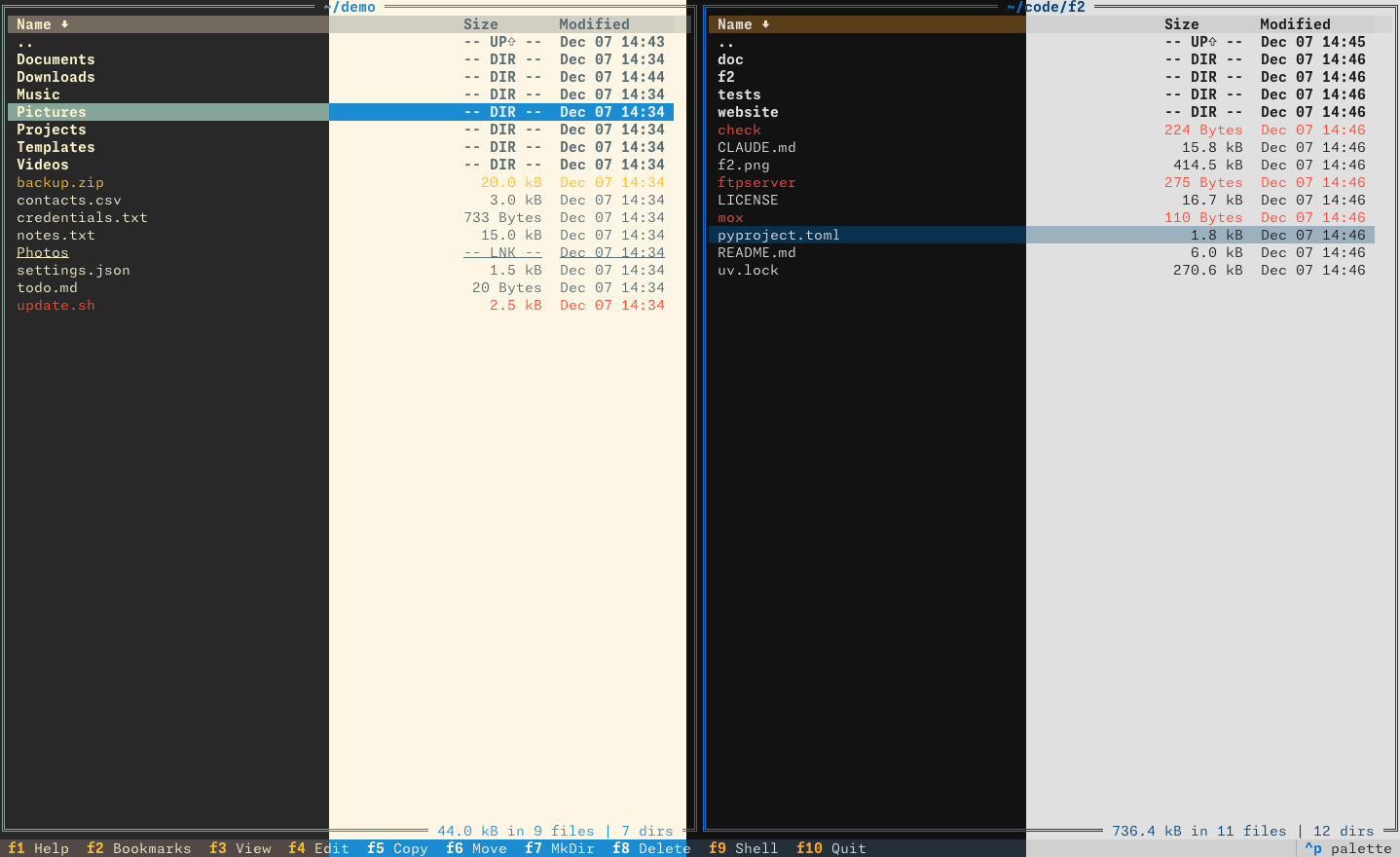
Multiple Themes
Choose from several built-in color themes or create your own. Themes can be changed on-the-fly via the configuration dialog (Ctrl+,).
Remote File Systems Preview
Extensive Protocol Support
Connect to virtually any storage system through fsspec integration:
Cloud Storage:
- AWS S3
- Google Cloud Storage (GCS)
- Azure Data Lake Storage (ADLS)
- Oracle Cloud Infrastructure (OCI)
- Alibaba Cloud OSS
File Transfer:
- FTP/FTPS
- SFTP (SSH)
- SMB/CIFS
- WebDAV
Cloud Drives:
- Dropbox
- Google Drive
Specialized Systems:
- HDFS (Hadoop)
- DVC (Data Version Control)
- LakeFS
- Git repositories
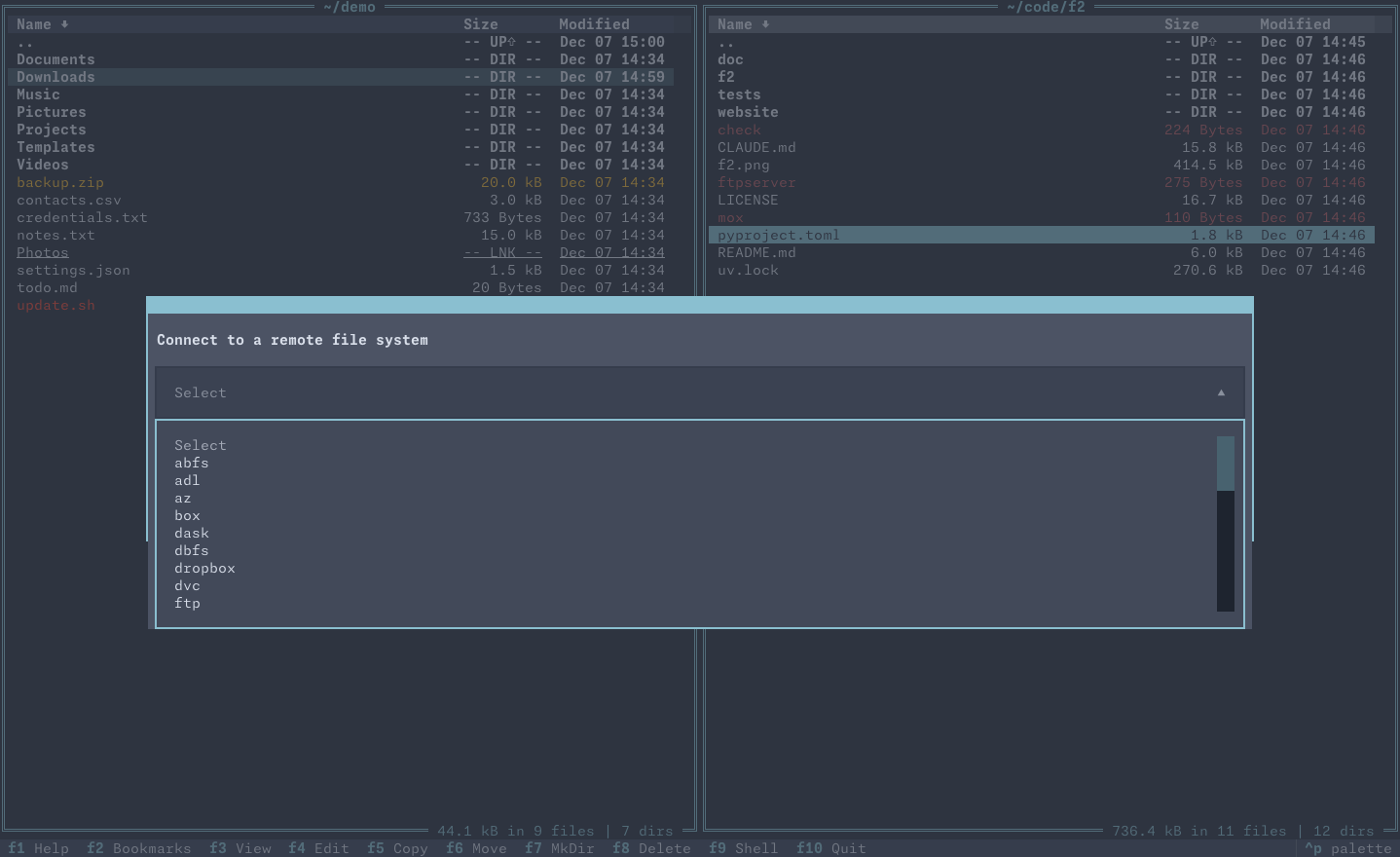
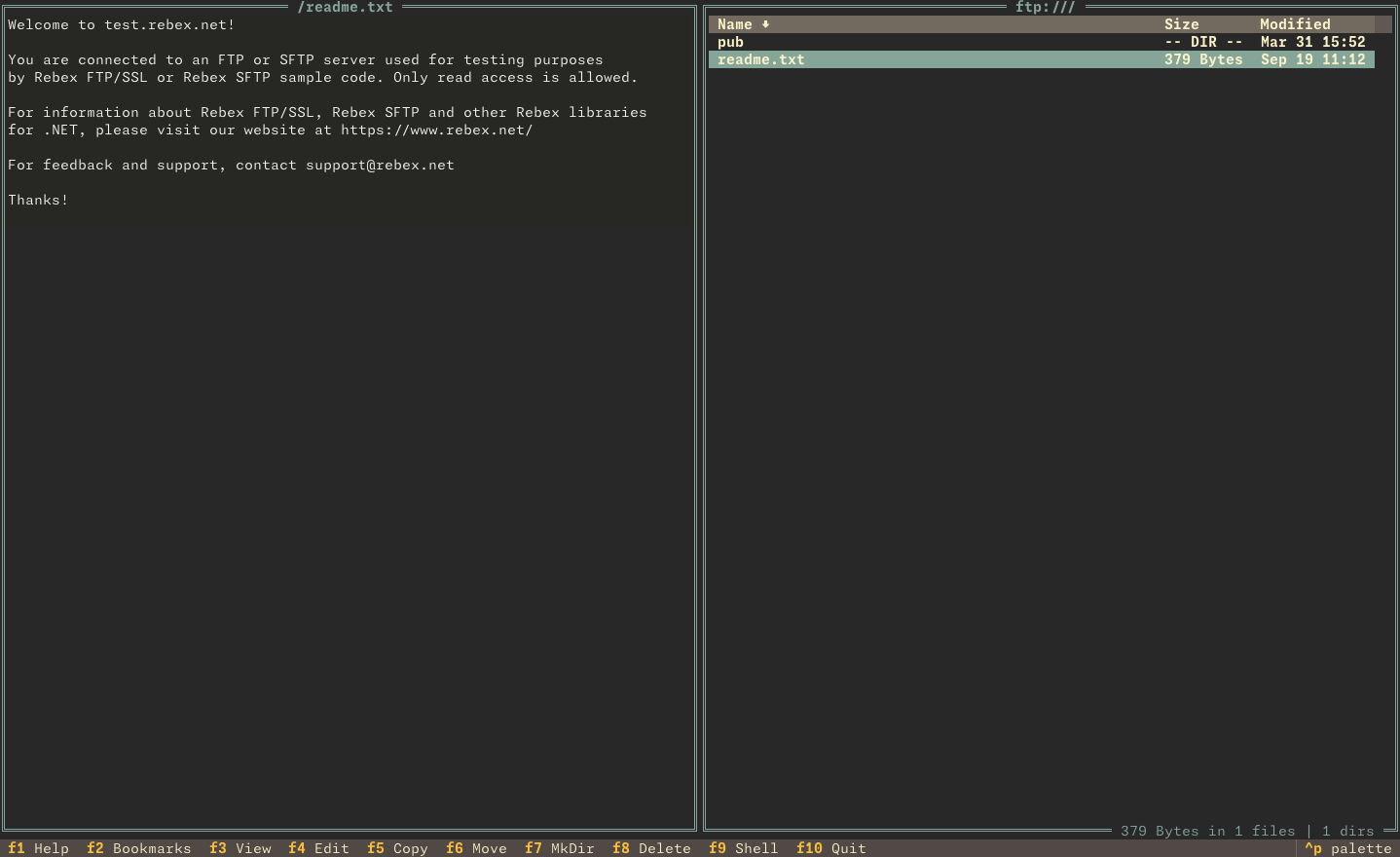
Connection Management
Easily connect and manage remote filesystems:
- Connection Dialog (Ctrl+T) - Interactive connection wizard
- Bookmark Connections - Save frequently used connections
- Persisted Configuration - Store connection details in config file
- Automatic Package Detection - Shows required packages for each protocol
How to install protocol support
Most protocols require installing additional fsspec implementation packages:
# If you installed with pipx:
pipx inject f2-commander s3fs        # For AWS S3
pipx inject f2-commander gcsfs       # For Google Cloud
pipx inject f2-commander adlfs       # For Azure
# ... and so on
The connection dialog shows which package is needed for each protocol.
Archive Support
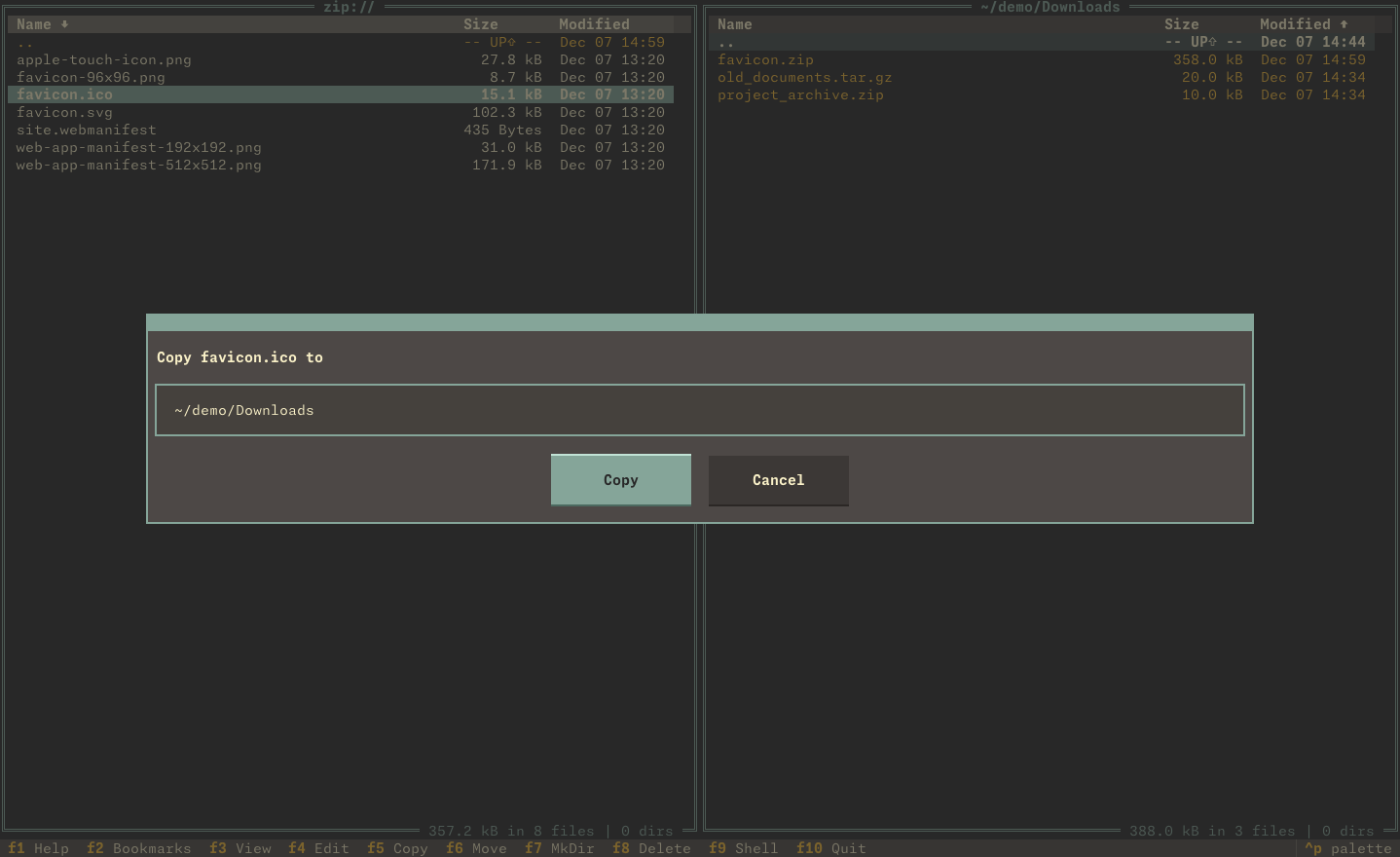
Read & Write Archives
F2 Commander treats archives as navigable filesystems powered by libarchive:
Supported Formats:
- ZIP
- TAR (with gz, bz2, xz compression)
- 7-Zip (.7z)
- RAR
- ISO 9660 (CD/DVD images)
- MS CAB
- XAR, LHA/LZH
- cpio, ar, pax
- WARC, mtree, shar
- And more...
Browse Archives
Navigate archive contents just like regular directories:
- Press Enter on an archive file to open it
- Browse contents with normal navigation
- Copy files out of archives to any destination
- View file previews inside archives
Create Archives
Create new archives from selected files and directories:
- Select one or more files/directories
- Open Command Palette (Ctrl+P)
- Choose "Create an archive"
- Enter filename with extension
Supported extensions:
.zip, .tar, .tar.gz, .tgz, .tar.bz2, .tbz2, .tar.xz, .txz, .7z, .ar, .cpio, .warc
The file extension determines the archive format and compression method.
Integration & Customization
External Tool Integration
- System File Manager - Open current location in Finder/Nautilus/etc. (o)
- Default Programs - Open files with system default applications
- Text Editor - Configure your preferred editor (auto-detects VS Code, vim, nano, etc.)
- File Viewer - Set custom viewer with
$VIEWERenvironment variable - Shell Integration - Drop to shell in current directory (x or F9)
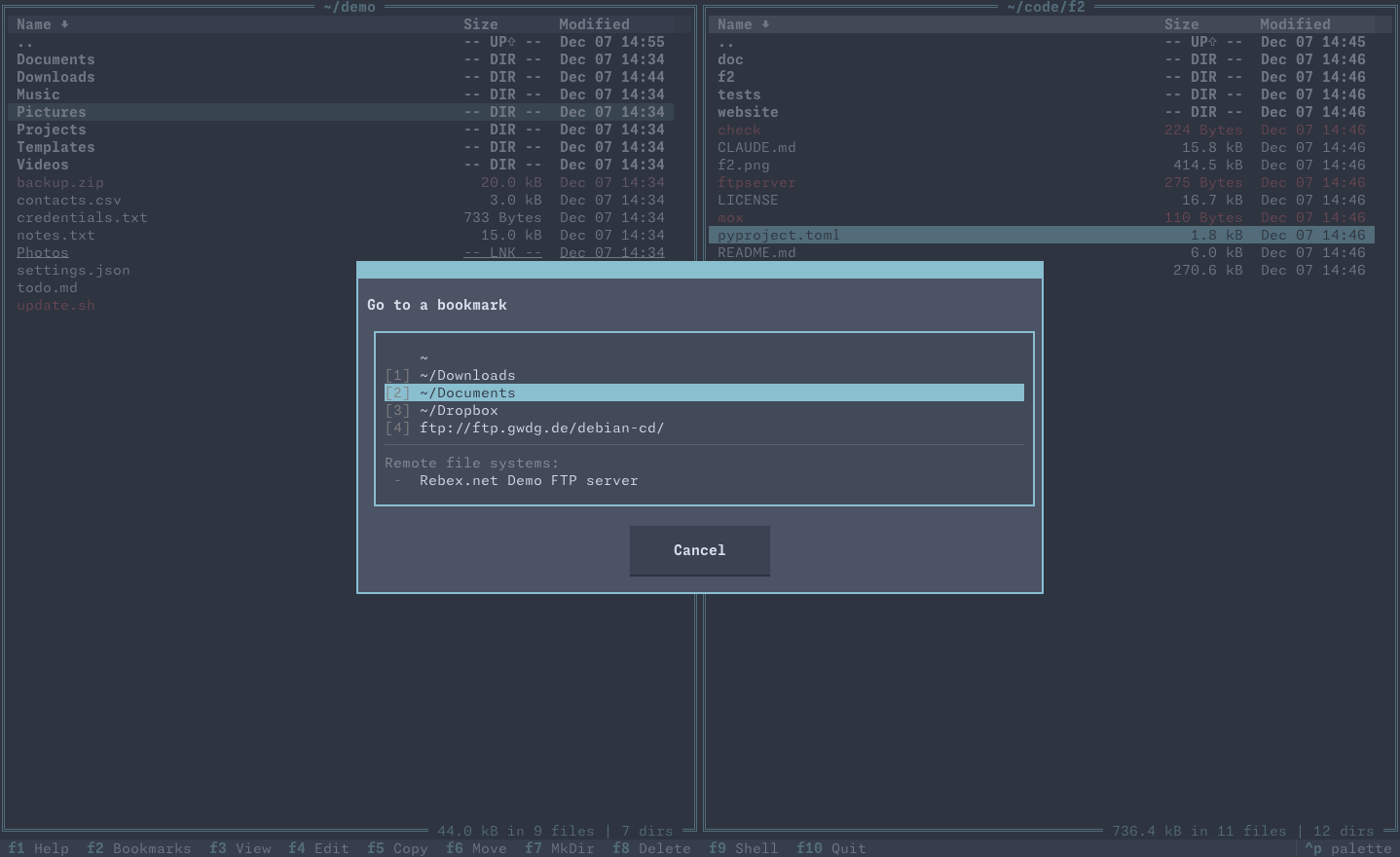
Bookmarks
Quick access to frequently used locations:
- Local directories
- Remote filesystem connections
- Network shares
- Configured via GUI or JSON file
Configuration
Customize F2 Commander to your preferences:
- GUI Configuration Dialog (Ctrl+,) - Friendly interface for all settings
- JSON Configuration File - Platform-specific location for advanced customization
- Auto-save - Changes save automatically
- Key Mapping - Choose between Vi-like or Function key bindings
- Themes - Select from built-in color schemes
- External Tools - Configure editor, viewer, and other tools
- Remote Connections - Store connection credentials securely
Flexible Panel System
F2 Commander uses a flexible panel system where each panel can display different types of content:
Files Panel
Default panel type for file system navigation and manipulation. Browse local and remote filesystems with full file manager capabilities.
Preview Panel
Display file contents, images, PDFs, and directory trees. Automatically updates as you navigate in the Files panel.
Help Panel
Built-in user manual with table of contents. Access with ? or F1.
Switch panel types with Ctrl+E (left panel) and Ctrl+R (right panel).
Discoverable Interface
Built-in Help
Never feel lost - comprehensive help is always one keystroke away:
- Help Panel (? or F1) - Full user manual
- Footer Menu - Shows common actions and their keys
- Command Palette (Ctrl+P) - Searchable list of all commands
Everything is designed to be discoverable - you don't need to memorize commands or read documentation to get started. The interface guides you naturally.
Pro tip: Start with the Command Palette (Ctrl+P) to explore what F2 Commander can do!
Experience These Features Yourself
Install F2 Commander now and discover the power of a modern orthodox file manager.